Row-level field types
Row-level fields add a calculated column to their source table. The value is computed for every row of the table, on the fly, through the table's calculated-fields view — no data is copied and nothing is scheduled.
All row-level types share the same common configuration (name, description, source table, visibility). This page covers what each builder does and the rules to keep in mind.
Formula
Math on numeric fields. A formula is field <operator> value — pick a numeric field of the source table, an operator and a numeric value.
| Setting | What it means |
|---|---|
| Field | A numeric column of the source table (the picker only shows numeric fields). |
| Operator | + (add), − (subtract), × (multiply), ÷ (divide). |
| Value | A number. |
- Output type: inferred from the operands — integer fields with integer values stay whole numbers; division always produces a decimal.
- Example: "Engagement score" →
time_on_page × 10on your pageview table.
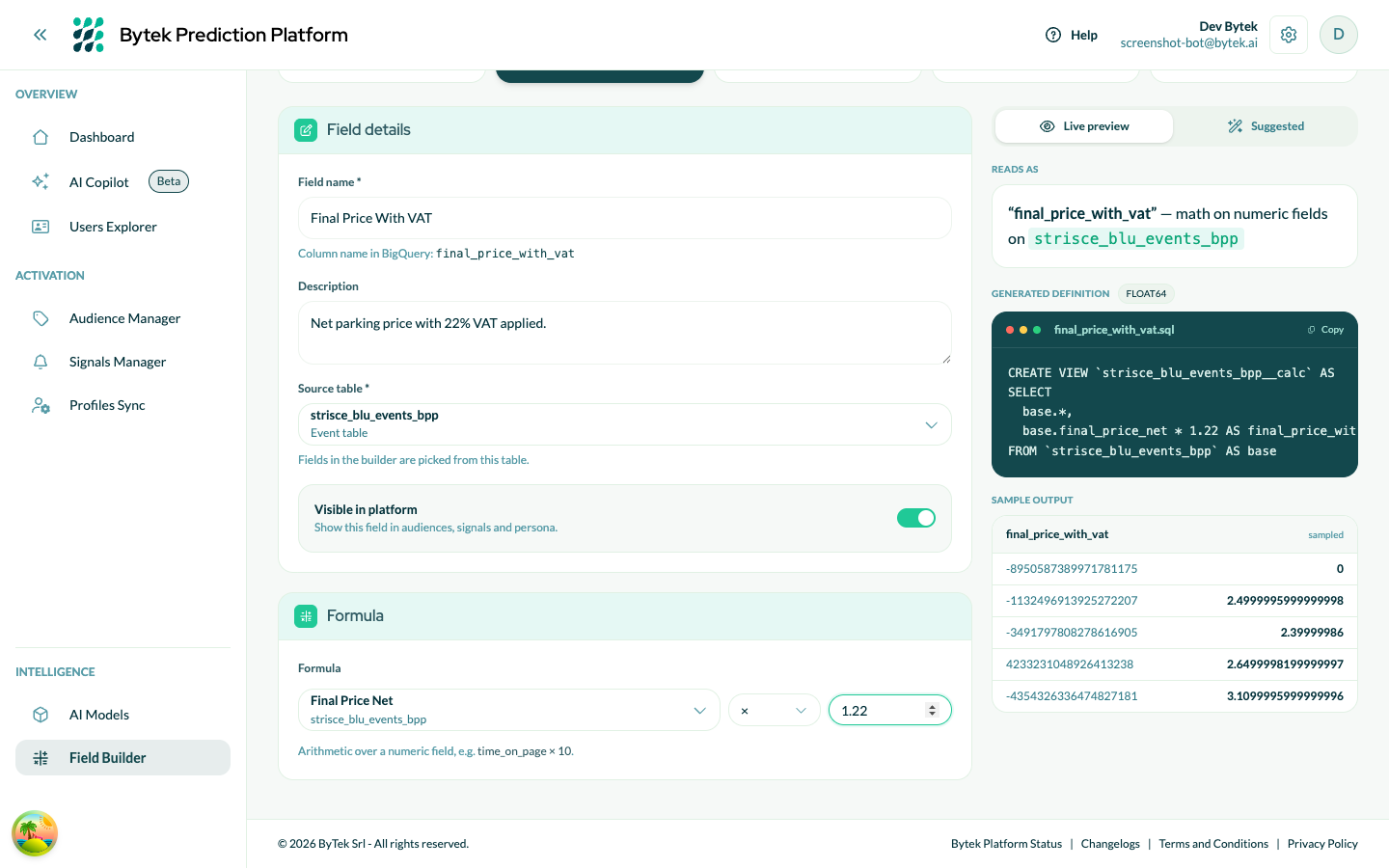
A Formula field (final_price_net × 1.22) — the right panel shows the generated SQL and the computed value on real sample rows.
Text
Combine & format text. A Text field concatenates an ordered list of parts, each of which is either a Field (a text column of the source table) or a fixed Text literal, with an optional transform and default.
| Setting | What it means |
|---|---|
| Text parts | Ordered parts; toggle each between Field and Text, add more with Add part. |
| Transform | None, UPPERCASE, lowercase or Trim spaces, applied to the whole result. |
| Default (if empty) | Value used when the result is NULL (e.g. when a field part is empty). |
- Output type: text.
- Example: "Display name" →
first_name+" "+last_name, transformUPPERCASE, default"UNKNOWN".
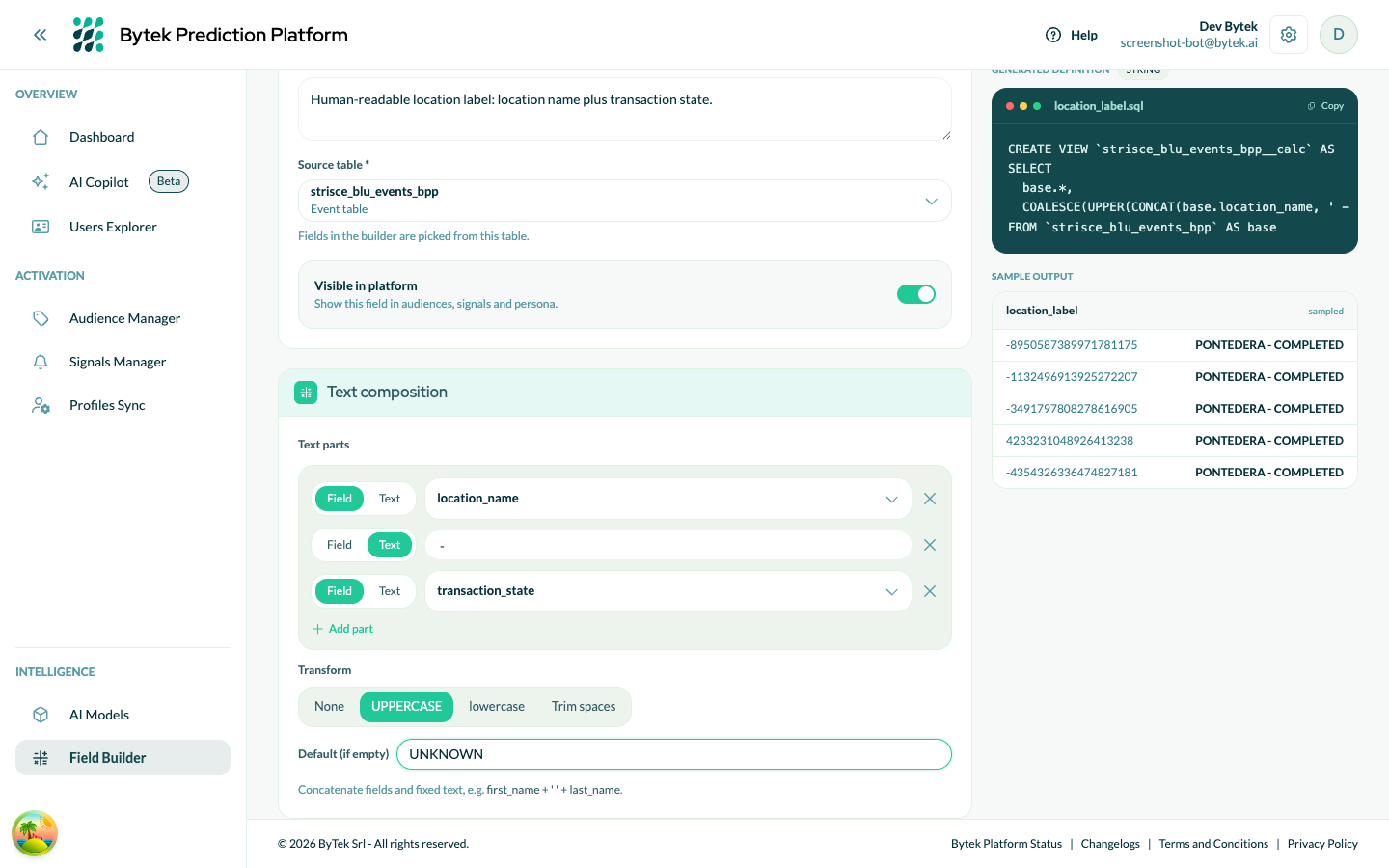
A Text field combining two columns with a fixed separator, uppercased, with a default for empty results.
Note: the field picker only offers scalar (non-array) text columns.
Conditional
CASE / if-then rules. A Conditional field evaluates a list of rules in order and returns the value of the first rule that matches; if none matches, the ELSE default is returned.
| Setting | What it means |
|---|---|
| WHEN / ELSE WHEN rules | Each rule has one or more conditions joined by AND (Field + operator + Value). Add branches with Add rule. |
| Condition operators | =, !=, <, <=, >, >=. |
| THEN | The result value of the rule. |
| ELSE | The default value when no rule matches. |
- Output type: inferred from the THEN/ELSE values — all branches must produce compatible types (all text, or all numeric).
- Example: "Engagement tier" → WHEN
sessions > 10THENhigh, ELSE WHENsessions > 3THENmedium, ELSElow.
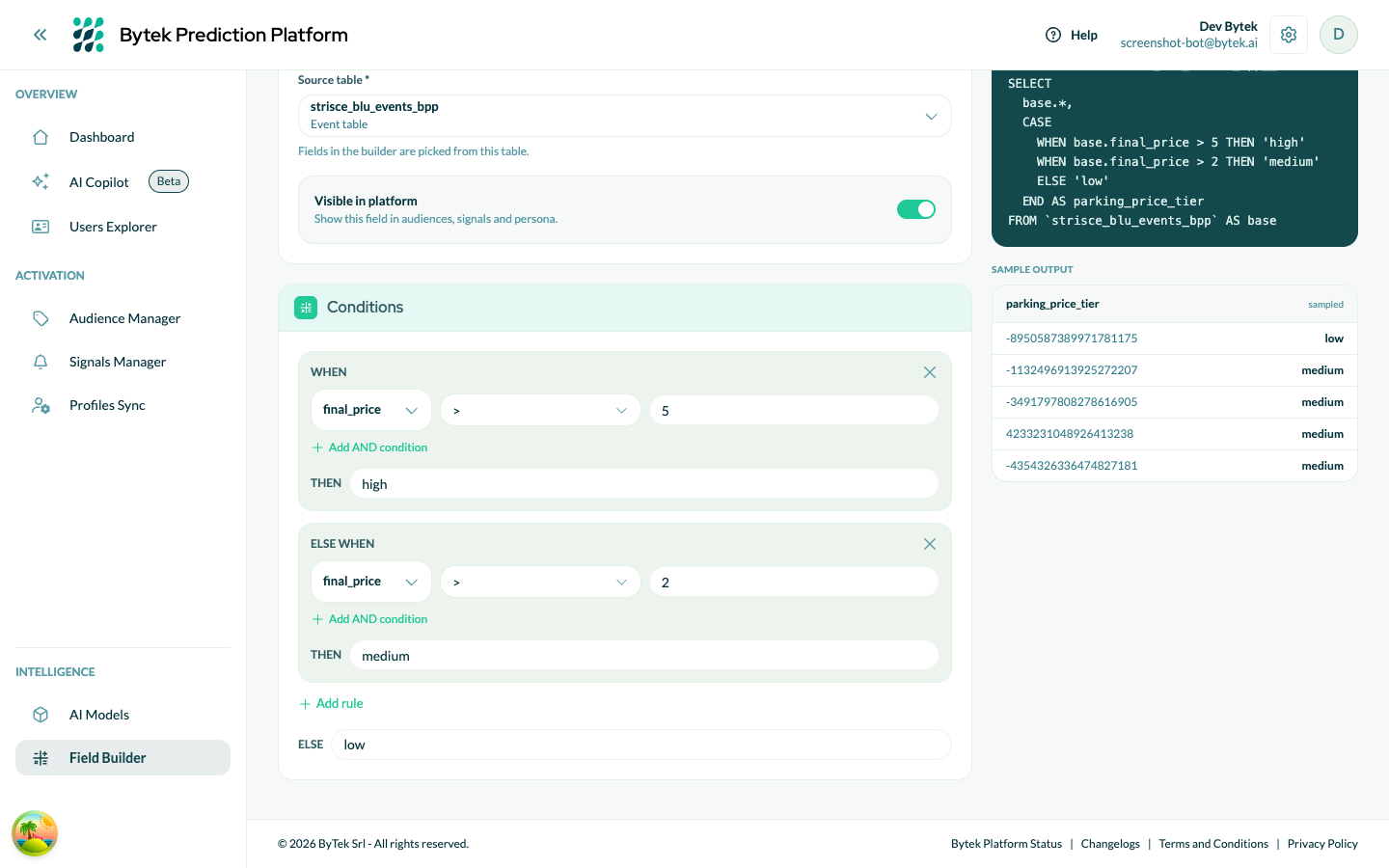
A Conditional field bucketing rows into tiers — two WHEN rules plus the ELSE default, with the CASE expression and sample values on the right.
Note: you don't need to worry about quoting values — BPP adapts each comparison value to the type of the field it is compared against (e.g. comparing a text postal-code column with
59100works as expected).
Lookup
Map values via a table. A Lookup field translates the values of a source field into other values through a mapping. Two sources are available:
Inline mapping
Type the mapping directly in the builder: rows of Source value → Mapped value (add more with Add mapping), plus a Default (else) used when no mapping matches. Best for short, stable mappings (a handful of codes).
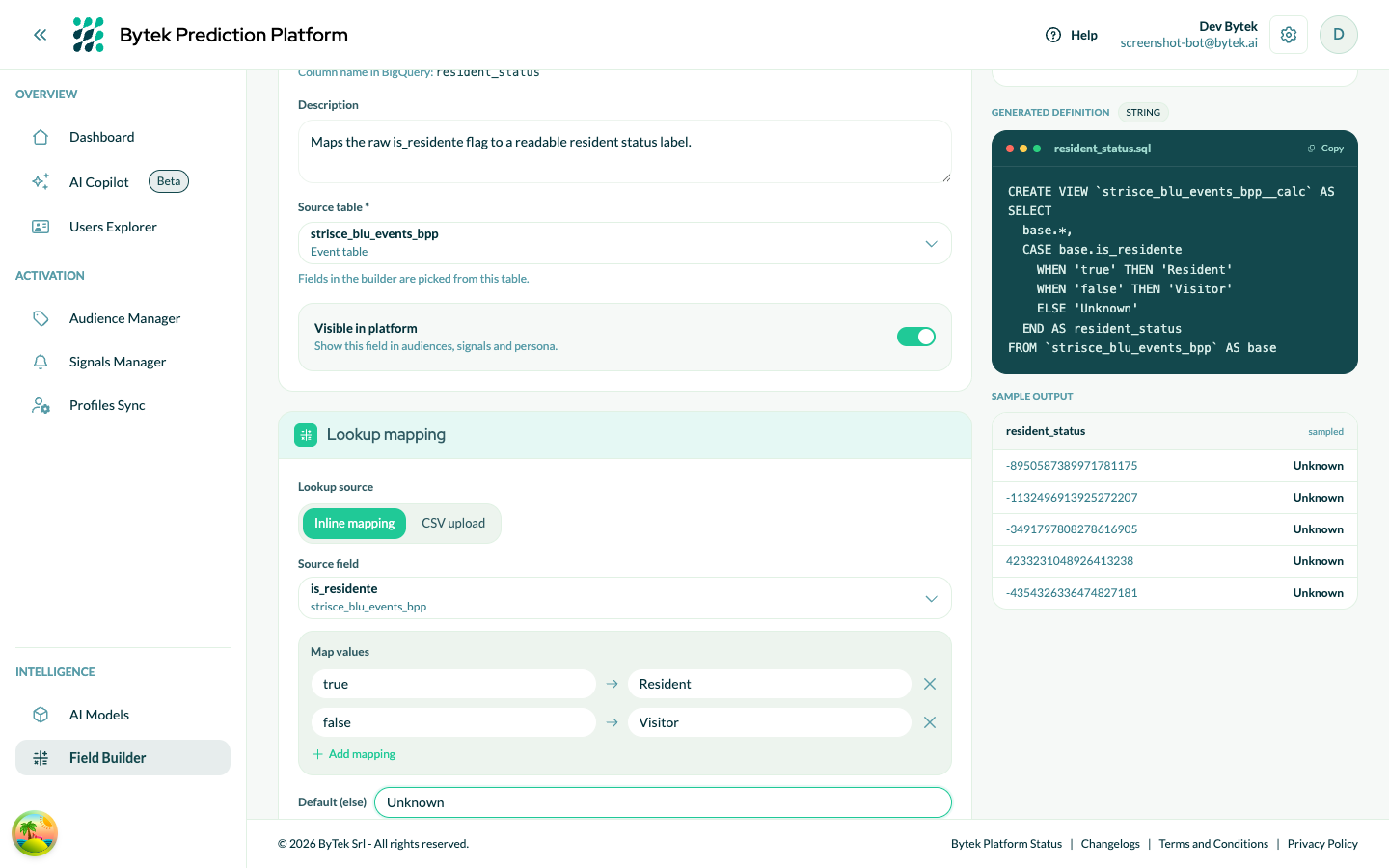
An inline Lookup mapping raw flag values to readable labels — the mapping compiles to a CASE expression.
CSV upload
Upload a CSV; BPP stores it as a hidden BigQuery reference table and resolves the lookup with a join inside the field's view. Best for long mappings (hundreds or thousands of keys — e.g. postal code → city).
After the upload you pick the Key column (matched against the source field) and the Value column (the mapped result), plus an optional Default (else).
A Download sample CSV link in the builder provides a ready-made file with the expected layout.
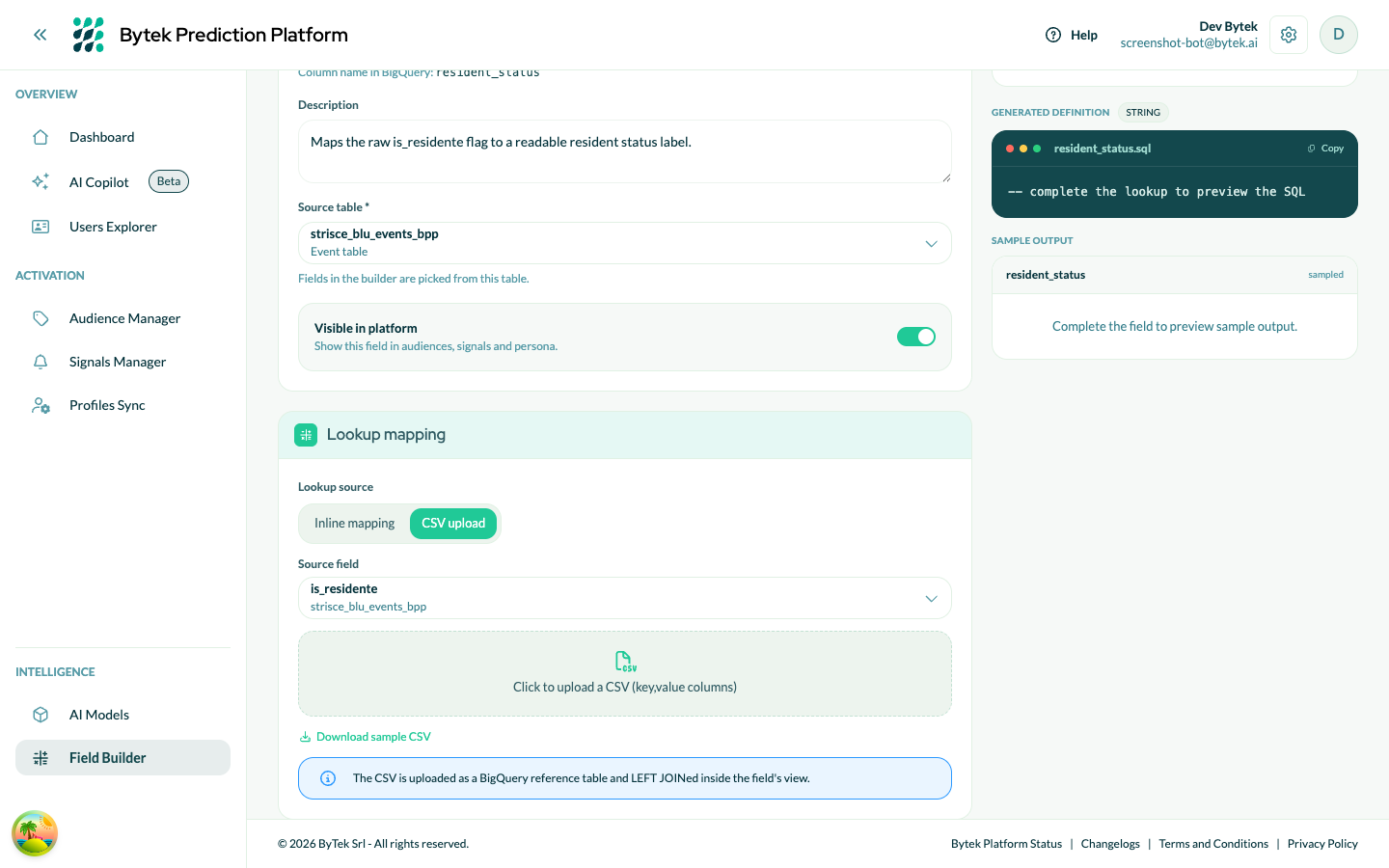
The CSV upload variant — pick the source field, then upload the mapping file (a sample CSV is available for download).
CSV requirements:
| Rule | Limit |
|---|---|
| File size | max 5 MB |
| Rows | max 50,000 |
| Columns | at least 2 (a key + a value column), with a header row |
| Key column (first column) | values must be unique and non-empty |
Column types are inferred from the content. A column is treated as numeric only when every value is a canonical number; values with a leading zero (e.g. postal codes like 01022) are kept as text so the zeros are preserved and the lookup matches correctly. If the key column and the source field still end up with different types (e.g. numeric codes matched against a text column), BPP casts the reference side of the join automatically — no action needed.
Array (REPEATED) source fields
A lookup's source field may be an array column: the mapping is then applied element by element and the result is itself an array. Elements with no matching key take the default value, or are dropped when no default is set.
- Output type: the value column's type (CSV) or text (inline).
- Example: "City" → CSV lookup on
cap(postal code) with acode,cityreference file.
Validation
The builder validates the definition when you save (and offers a dry-run check while editing). Errors you may encounter:
| Error | Meaning / fix |
|---|---|
| Name must start with a letter or underscore… | The BigQuery column name is derived from the field name; use letters, numbers and spaces — punctuation collapses to _. |
| …is a reserved BigQuery keyword… | Names like "Lookup" or "Select" derive into reserved SQL keywords. Choose a different name (e.g. "CAP Lookup"). |
| A field named '…' already exists in '…' | The derived column name collides with an existing column of the source table (including AI model outputs). Rename the field. |
| Field '…' is itself a calculated field; calc-on-calc is not supported | A calculated field cannot reference another calculated field. Reference base columns only (AI/RFM model outputs are fine). |
| Field '…' is an array (REPEATED) column… | Array columns can't be used as operands — except as a Lookup source field (see above). |
| Field '…' is STRING; arithmetic requires numeric operands | Formulas only work on numeric fields. |
| Cannot compare field '…' (STRING) with field '…' (INT64) | The two sides of a condition have incompatible types. |
Note: as a final safety net, activation dry-runs the generated SQL on BigQuery; if it fails, the field goes to Error with the message attached, and editing it resets it to Draft.