Creating & managing fields
Adding a new field — step by step
- Go to Field Builder in the left sidebar.
- Click Add field and pick the field type from the cards (Aggregated, Formula, Text, Conditional, Lookup). The type cannot be changed after the field is created.
- Fill in the common settings (below) and the type-specific builder — see Row-level field types and Aggregated fields.
- Check the Sample output and Generated SQL panels while you build (row-level types).
- Click Save — new fields are always created as Draft.
- Activate the field from the list with the Active toggle (or from the editor).
- Row-level fields are usable immediately; aggregated fields appear once the first computation completes.
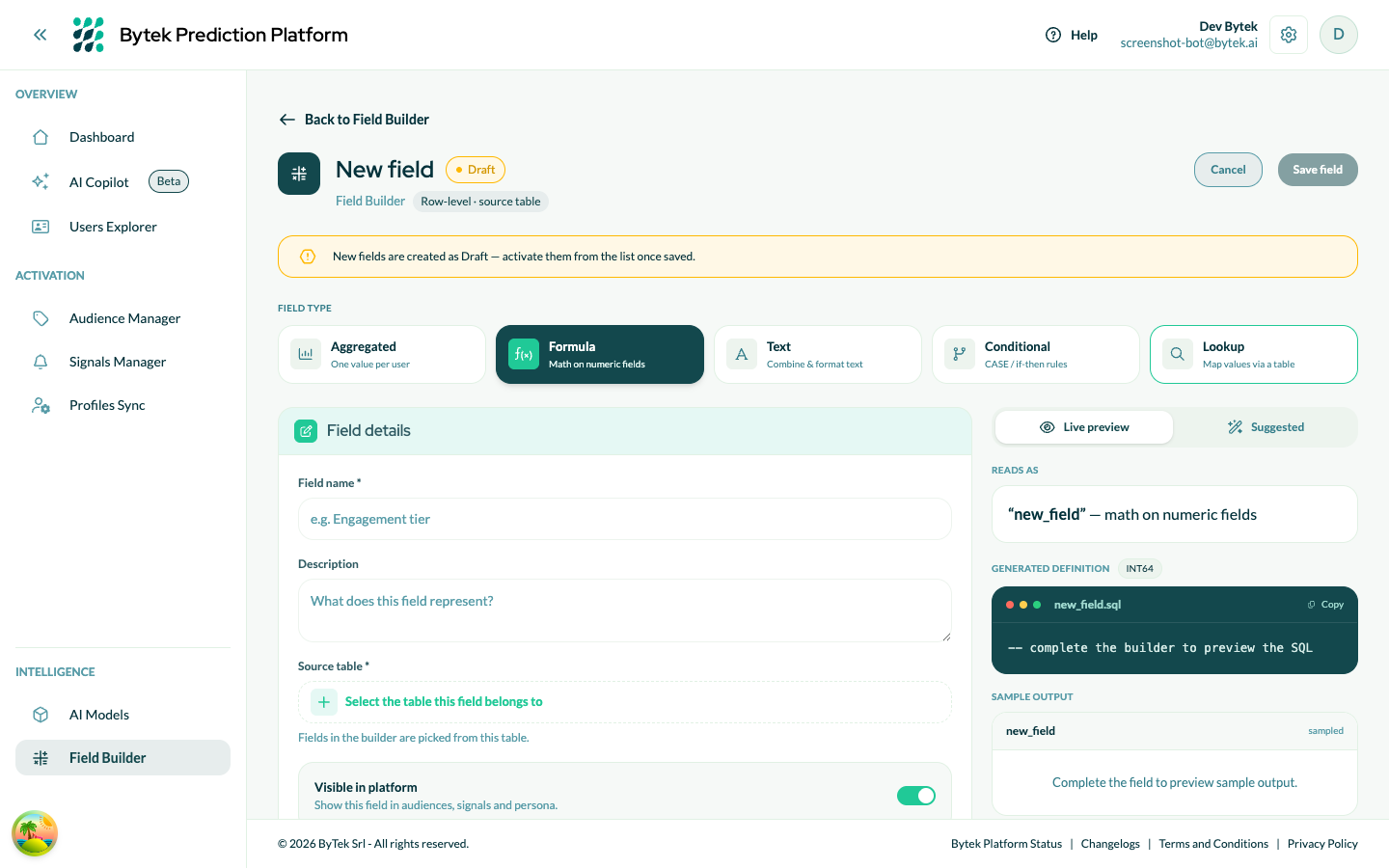
The New field editor: pick a type from the cards, build on the left, live preview on the right.
Common settings
| Setting | What it means |
|---|---|
| Field name | The display name shown across BPP (e.g., "Interest Category"). The physical BigQuery column name is derived from it — lowercased, punctuation and spaces become _ (e.g. interest_category) — and shown live under the input. Must be unique within the source table. |
| Description | A short explanation of what this field measures. Required. |
| Source table | The table the field is computed on. Row-level builders pick their operand fields from this table; aggregated fields require an event-type table. |
| Visible in platform | Exposes the field in audiences, signals and persona. Turn it off to hide the field from the pickers without suspending it. |
AI suggestions: the wand buttons next to Field name and Description generate a suggested name and description from the source table and the field definition — useful as a starting point.
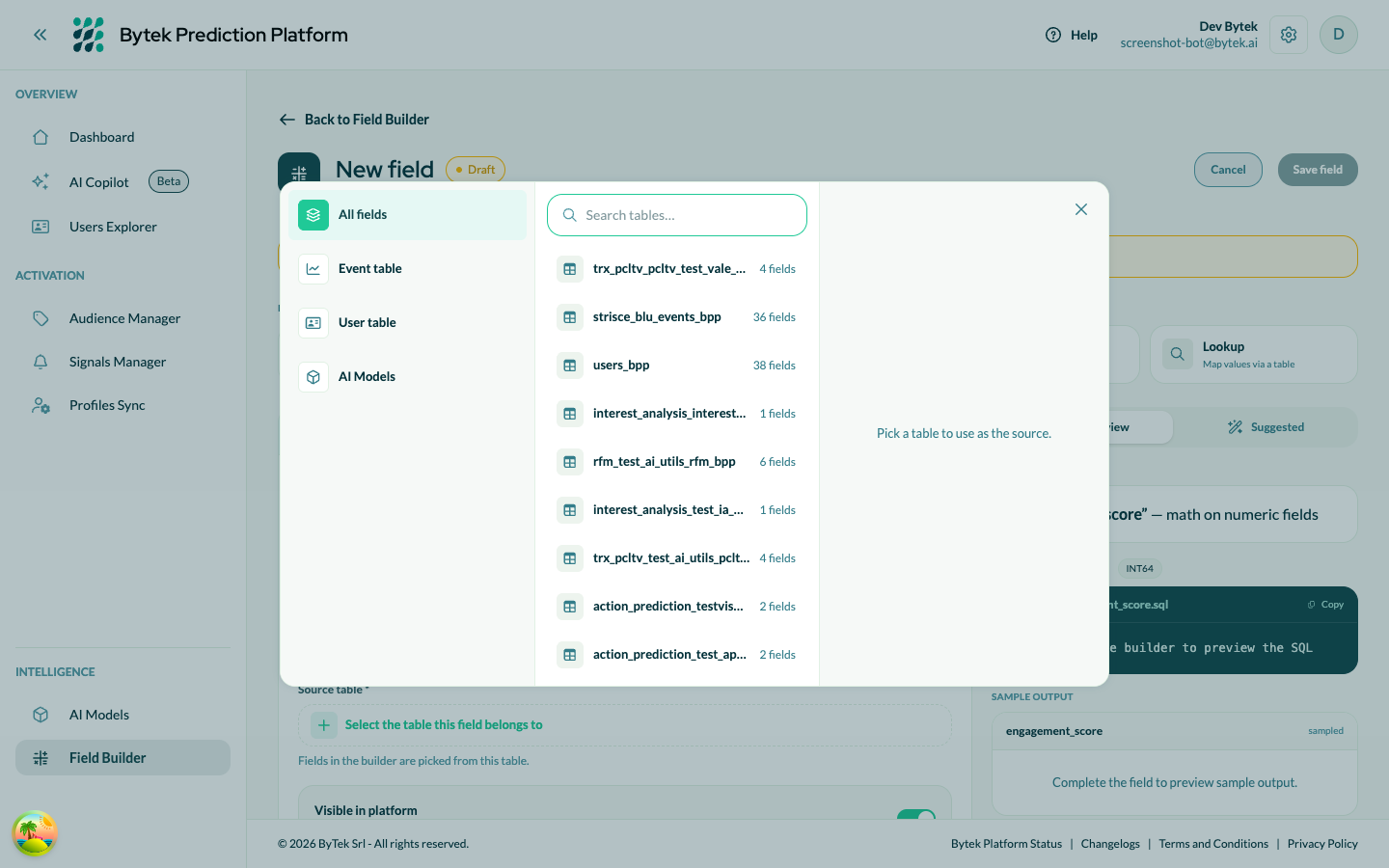
The source table picker — browse by category (Event table, User table, AI Models) or search by name.
Sample output preview
For Formula, Conditional and inline Lookup fields, the builder shows a Sample output card with the computed value on up to 5 real rows of the source table, refreshed as you edit the definition.
- Available on event and user tables only (rows are keyed by record / user id).
- The preview runs a live, tightly-bounded query; on very large tables or under heavy use it may show "Sample preview unavailable for this field." — this does not affect saving or activation.
- Aggregated and CSV lookup fields don't show a sample (their value depends on a full computation / uploaded table).
Next to the sample, the Generated SQL panel shows the inferred Result type and an illustrative SQL expression of the definition, with a copy button and a plain-language "Reads as" sentence.
Activating, suspending and fixing errors
- Activate (Draft → Active): for row-level fields, BPP validates the definition, dry-runs the SQL on BigQuery and rebuilds the table's calculated-fields view — the field is available in the platform right away. For aggregated fields, the field becomes Ready and is computed on the next daily run (or on demand via Trigger recomputation).
- Suspend (Active → Suspended): the column is removed from the view (row-level) or excluded from computation (Aggregated). The definition is kept and the field can be re-activated at any time.
- Error: if activation or computation fails, the field goes to Error with the message attached. Editing the field resets it to Draft so you can fix the definition and activate again.
- Delete: removes the field and its column from the view. Aggregated and row-level fields are deleted independently per type.
Troubleshooting
| Symptom | What to check |
|---|---|
| Activation fails with a validation message | See the validation table — most messages point directly at the fix (reserved name, name collision, incompatible types, calc-on-calc). |
| Field stuck in Error | Read the error message on the field, fix the definition (this resets it to Draft) and re-activate. Verify the source table and field names are correct and that the table has data. |
| Field shows NULL for most users | The filter conditions may be too restrictive, or most users have no matching events. For lookups, check that the mapping keys actually match the source values. |
| Lookup values never match | Check the key column of your CSV: numeric-looking codes with leading zeros (e.g. 01022) must be uploaded as-is — BPP preserves them as text. Re-upload the CSV if it was prepared with a tool that stripped the zeros (e.g. a spreadsheet auto-converting codes to numbers). |
| Field not appearing in the audience builder | Make sure it is Active and the Visible in platform toggle is on. Remember that row-level fields on event tables are not filterable in user-level audiences — use an Aggregated field for that. |
| Aggregation type not available for my field | Some aggregation types are only available for specific field types. SUM and AVG require a numeric field; EVENTTIMEDIFF requires a date or timestamp field. Select a compatible field or change your aggregation type. |
| Sample preview unavailable | The preview query hit its cost/time guard, or the table type doesn't support previews. It's informational only — you can still save and activate. |