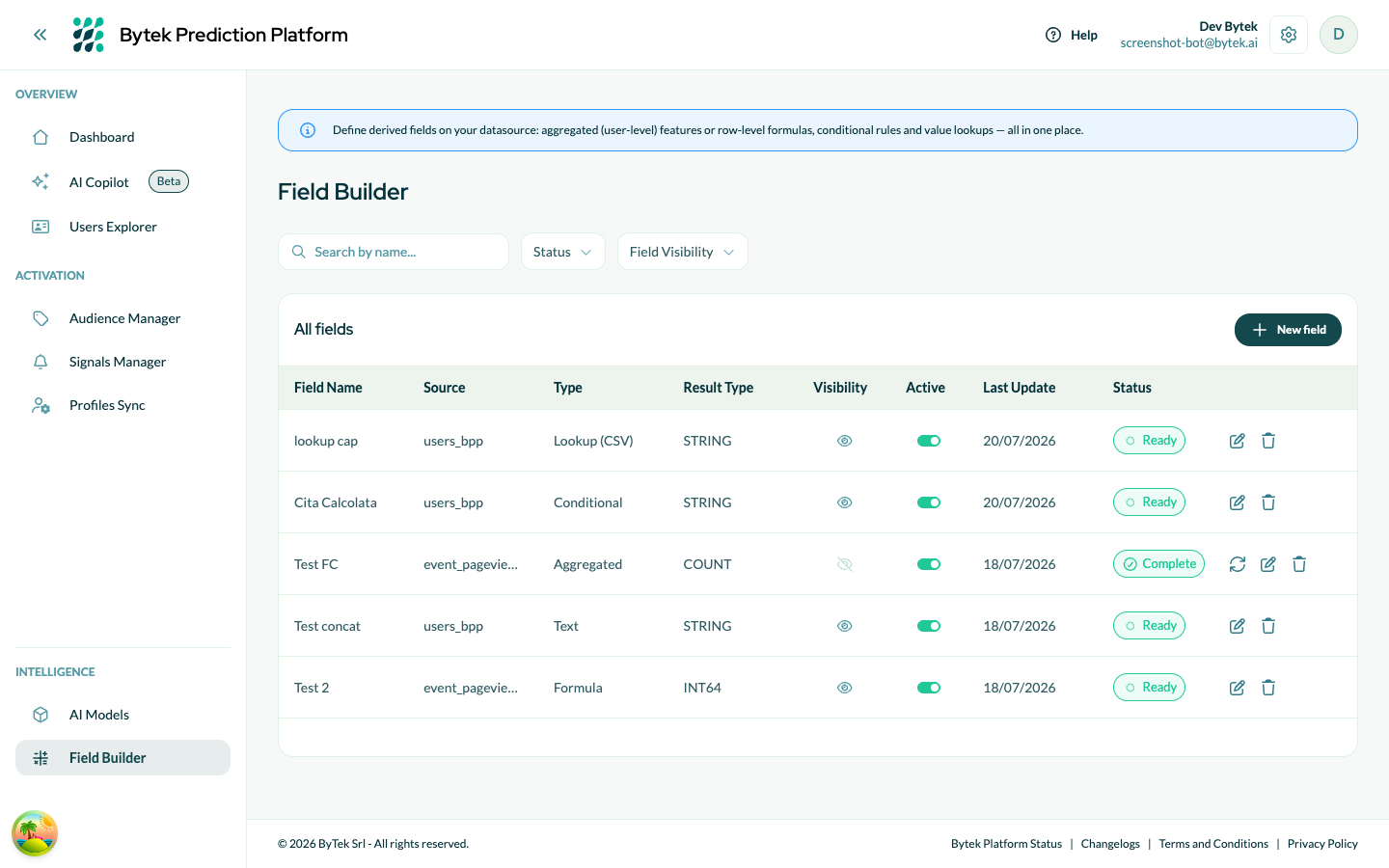
Fields Builder
What it does
The Fields Builder turns your raw event history into ready-to-use per-customer metrics. It automatically aggregates behavioural data — purchases, sessions, page views, form submissions — and produces a clean summary table with one row per customer and one column per metric you define.
These metrics are then available throughout BPP as filter fields when building audiences and as value inputs when configuring signals.
Examples of what you can compute:
- Total number of orders in the last 90 days.
- Average order value over the last year.
- Whether a user has ever completed a purchase (yes/no).
- Most recent product category browsed.
- Time between a user's first and last event.
Why it matters for marketers
Without pre-computed fields, you could only filter audiences on static user attributes (e.g., country, plan type). With Fields Builder, you can filter on what users have actually done — making your audience segments far more precise.
Examples of audiences you can build once fields are set up:
- "Users who placed 3 or more orders in the last 6 months" → loyalty targeting.
- "Users with average order value above €150" → premium up-sell audience.
- "Users who visited the pricing page but never purchased" → high-intent remarketing.
- "Users whose predicted LTV is above €500" (combined with AI models).
You can also use field values in your conversion signals — for example, sending a user's total lifetime revenue as the conversion value, rather than a fixed number.
How to define a field
Navigate to the Fields Builder section in BPP and click Add Aggregated Field.
For each field, you define:
| Setting | What it means |
|---|---|
| Name | What this metric will be called in the filter builder (e.g., "Total Orders"). Must be unique within your workspace. |
| Description | A short explanation of what this field measures. Required. |
| Source table | Which event table to aggregate from (e.g., your orders table or pageview table). Must be an event-type table. |
| Field to aggregate | Which column in that table to compute (e.g., order value, or count all rows). Use * to count all rows with COUNT. |
| Aggregation type | How to compute the metric — see the table below. Available options depend on the data type of the selected field. |
| Filters (optional) | Restrict which rows are included (e.g., only include orders with status = "completed"). |
Once defined, set the field to Ready and BPP will compute it automatically on the next daily run.
Template fields: BPP includes a library of pre-built template fields (common metrics like total orders, average order value, days since last purchase). You can use these as a starting point — copy a template to your workspace and adjust it to match your data tables and field names.
Aggregation types
BPP supports 11 aggregation types, split into two groups: metrics (numeric outputs) and dimensions (categorical or boolean outputs).
Field type compatibility: Not all aggregations are available for every field. BPP automatically shows only the aggregations that are valid for the data type of your selected field. For example, SUM and AVG are only available on numeric fields; EVENTTIMEDIFF is only available on date/timestamp fields.
Numeric aggregations
Use these when you want to measure how much, how many, or how big.
COUNT — how many times
Counts the number of events per user. Use * as the field to count all rows, or a specific field to count non-null values.
- Output type: whole number
- Typical use: total number of orders, total sessions, total page views
- Example field: "Total orders in the last 90 days" →
COUNT(*)on your orders table with a date filter
COUNT_UNIQUE — how many distinct values
Counts the number of unique values of a field per user.
- Output type: whole number
- Typical use: number of distinct products purchased, number of different categories browsed
- Example field: "Unique products purchased" →
COUNT_UNIQUE(product_id)on your orders table
SUM — total value
Adds up all values of a numeric field per user.
- Output type: number (integer or decimal)
- Requires: a numeric field (e.g., revenue, quantity, points)
- Typical use: total revenue, total quantity purchased, total ad clicks
- Example field: "Total spend last 12 months" →
SUM(order_value)on your orders table
AVG — average value
Calculates the mean value of a numeric field per user.
- Output type: decimal number
- Requires: a numeric field
- Typical use: average order value, average session duration
- Example field: "Average order value" →
AVG(order_value)on your orders table
MIN — lowest value
Returns the smallest value of a field across all of a user's events.
- Output type: same type as the source field (number or date)
- Typical use: cheapest order ever placed, earliest event date, lowest score
- Example field: "Cheapest order ever" →
MIN(order_value)on your orders table
MAX — highest value
Returns the largest value of a field across all of a user's events.
- Output type: same type as the source field (number or date)
- Typical use: most expensive purchase, most recent event date, highest score
- Example field: "Highest single order value" →
MAX(order_value)on your orders table
Dimensional aggregations
Use these when you want to know what, when, or whether.
FIRST — earliest recorded value
Returns the value of a field from the chronologically first event per user (ordered by event_date ascending).
- Output type: same type as the source field (text, number, date)
- Typical use: first product category purchased, first acquisition channel, first country
- Example field: "First product category bought" →
FIRST(category)on your orders table
Useful for understanding customer acquisition — what did users buy first, where did they come from?
LAST — most recent value
Returns the value of a field from the most recent event per user (ordered by event_date descending).
- Output type: same type as the source field
- Typical use: last product browsed, most recent session source, latest subscription plan
- Example field: "Last category browsed" →
LAST(category)on your pageview table
Useful for intent signals — what is the user interested in right now?
MODE — most frequent value
Returns the value that appears most often across a user's events. If multiple values tie, one is returned (approximate).
- Output type: same type as the source field (usually text)
- Typical use: favourite product category, most-used device, preferred payment method
- Example field: "Favourite category" →
MODE(category)on your orders table
Use this when you want to know a user's habitual preference, not their most recent one.
BOOLEAN_EXISTS — yes or no
Returns true if a user has at least one event matching the condition, and false otherwise. Think of it as "did this ever happen?".
There are two ways to use it:
- On a boolean field: the field returns
trueif the field was evertruefor that user (e.g.,is_converted = true). - With a filter condition: the field returns
trueif any event matches the condition (e.g.,event_type = "purchase"). This is the most common usage.
| Setting | Example |
|---|---|
| Source field | Any field, or use a condition |
| Filter | event_type = "purchase" |
| Output | true / false |
- Typical use: has the user ever purchased? has the user seen the pricing page? is the user a loyalty member?
- Example field: "Has purchased" →
BOOLEAN_EXISTSon your events table with filterevent_type = "purchase"
This is ideal for yes/no audience splits — for example, "re-engage users who browsed but never purchased".
EVENTTIMEDIFF — time between two events
Measures the elapsed time between two specific event types per user. You define a "first event" and a "second event", and BPP calculates how much time passed between them.
- Output type: number (in the time unit you choose)
- Time units: seconds, minutes, hours, or days
- Typical use: time from first visit to first purchase, time from lead form submission to deal close, time from trial start to upgrade
Configuration:
| Setting | What to enter |
|---|---|
| First event | A filter condition identifying the starting event (e.g., event_type = "trial_start") |
| Second event | A filter condition identifying the ending event (e.g., event_type = "upgrade") |
| Timestamp field | The date/time column to measure from (usually event_date). Must be a DATE, DATETIME, or TIMESTAMP field. |
| Time unit | DAYS, HOURS, MINUTES, or SECONDS |
BPP uses the most recent occurrence of the second event and the closest preceding first event to calculate the time difference. Users who have not performed both events receive a blank value.
- Example field: "Days from first visit to first purchase" →
EVENTTIMEDIFFwithevent_type = "pageview"as first event andevent_type = "purchase"as second event, unitDAYS
Use this to segment users by their conversion speed — fast converters vs long consideration cycles — and tailor your ad messaging accordingly.
Quick reference
| Aggregation | Output | Works on | Best for |
|---|---|---|---|
| COUNT | Number | Any field or * | How many times something happened |
| COUNT_UNIQUE | Number | Any field | How many distinct things |
| SUM | Number | Numeric fields | Total revenue, total quantity |
| AVG | Decimal | Numeric fields | Average order value, average score |
| MIN | Number / Date | Any field | Cheapest, earliest |
| MAX | Number / Date | Any field | Most expensive, most recent |
| FIRST | Any | Any field | What happened first |
| LAST | Any | Any field | What happened most recently |
| MODE | Any | Any field | Most frequent value |
| BOOLEAN_EXISTS | True / False | Boolean or condition | Did it ever happen? |
| EVENTTIMEDIFF | Number | Timestamp field | Time between two events |
Filtering which events to include
You can narrow which rows are counted by adding filter conditions to a field. For example:
- Count only orders where
status = completed(exclude cancelled orders). - Sum revenue only for
category IN (electronics, appliances). - Count sessions where
device_category = mobile.
Filters support AND and OR logic, so you can build precise definitions.
Field status
| Status | What it means |
|---|---|
| Draft | Defined but not yet active. BPP won't compute it yet. |
| Ready | Enabled. Will be computed on the next daily run. |
| Running | Currently being computed. |
| Complete | Successfully computed. Available as a filter in audiences and signals. |
| Partial Complete | Computation completed but some users could not be processed. The field is still available with partial data. |
| Error | Something went wrong. Check that the source table and field names are correct. |
| Suspended | Temporarily paused. |
How fields appear in audiences and signals
Once a field is in Complete (or Partial Complete) status, it appears automatically in the field picker when you build an audience filter or configure a signal value formula.
For audiences, you will see it as a filterable condition — for example, "Total Orders is greater than 5".
For signals, you can use it as the conversion value — for example, 1 * TotalRevenue to send a user's total revenue as the signal value.
Visibility: Each field has a Visibility toggle. If you turn visibility off, the field will no longer appear in the audience and signal builders, even if it is in Complete status. This is useful to hide experimental or deprecated fields without deleting them.
Adding a new field — step by step
- Go to Fields Builder in the left sidebar.
- Click Add Aggregated Field.
- Enter a name, select the source event table, and choose the field and aggregation type.
- Optionally add filters to restrict which rows are included.
- Click Save.
- Set the status to Ready.
- The field will be computed on the next daily run and will appear in audience and signal builders once it completes.
Troubleshooting
| Symptom | What to check |
|---|---|
| Field stuck in Error | Verify the source table name and field name are correct and that the table has data. |
| Field shows NULL for most users | The filter conditions may be too restrictive, or most users have no matching events. Relax the filters and check. |
| Field not appearing in the audience builder | Make sure it has reached Complete or Partial Complete status. Also check that the Visibility toggle is on — hidden fields do not appear in the filter builder. |
| Aggregation type not available for my field | Some aggregation types are only available for specific field types. SUM and AVG require a numeric field; EVENTTIMEDIFF requires a date or timestamp field. Select a compatible field or change your aggregation type. |