DSM Onboarding
The onboarding flow runs once — the first time you connect BPP to your BigQuery dataset. It walks you through five steps: providing credentials, analysing the dataset, reviewing the schema, and activating the platform.
Video tutorial — A short walkthrough is available here: Watch on Loom (TODO!)
Step 1 — Connection & Dataset
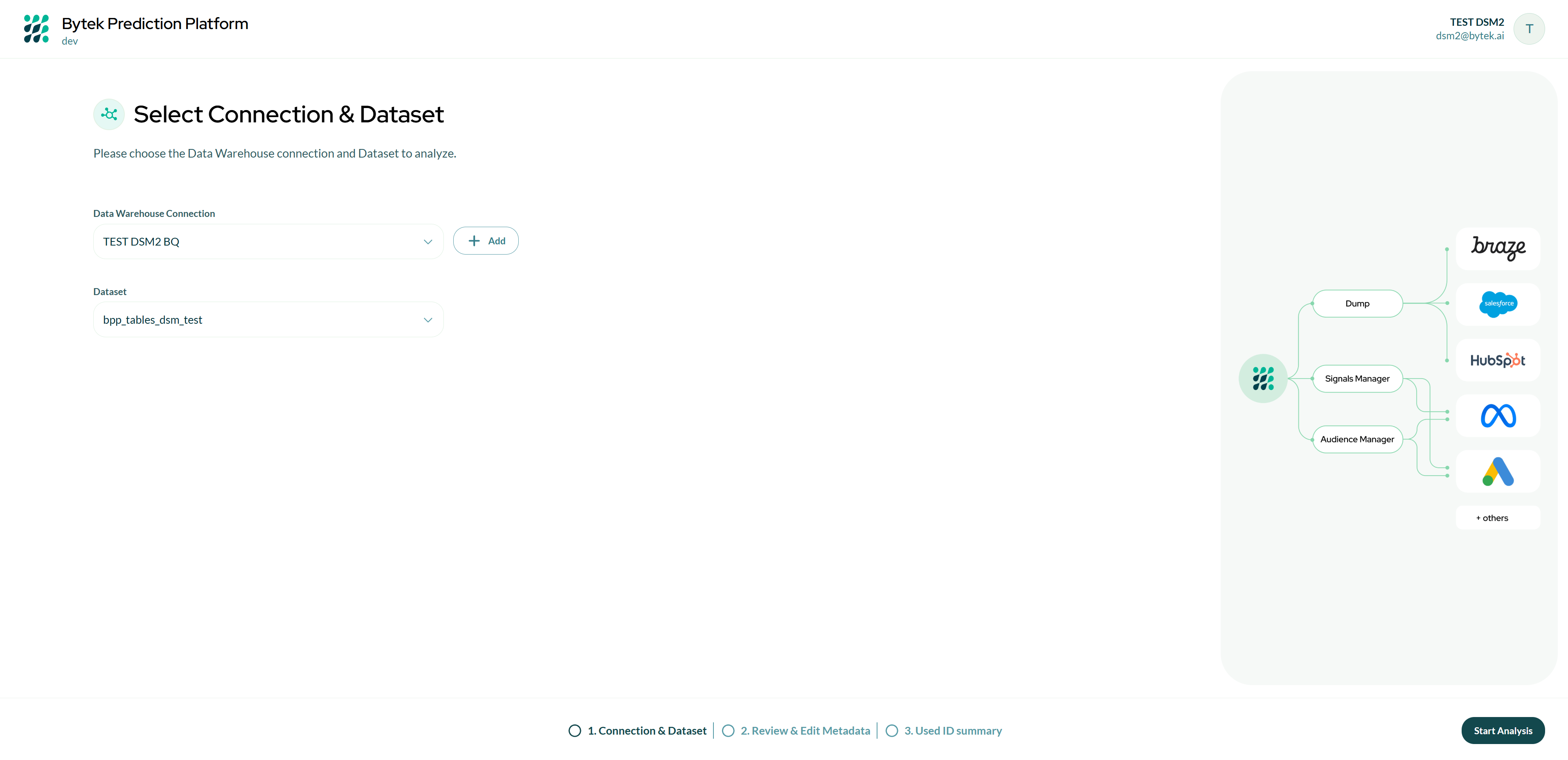
The first time you log in to the platform you will be automatically redirected to the first page of the DSM where you will be asked to:
- Choose a Connection to Bigquery (or create one if you don't already have it)
- Select the BigQuery dataset you want to connect to BPP.
- Click Connect to proceed.
The service account you will use must have all the required GCP Permissions.
Step 2 — Analysis in progress
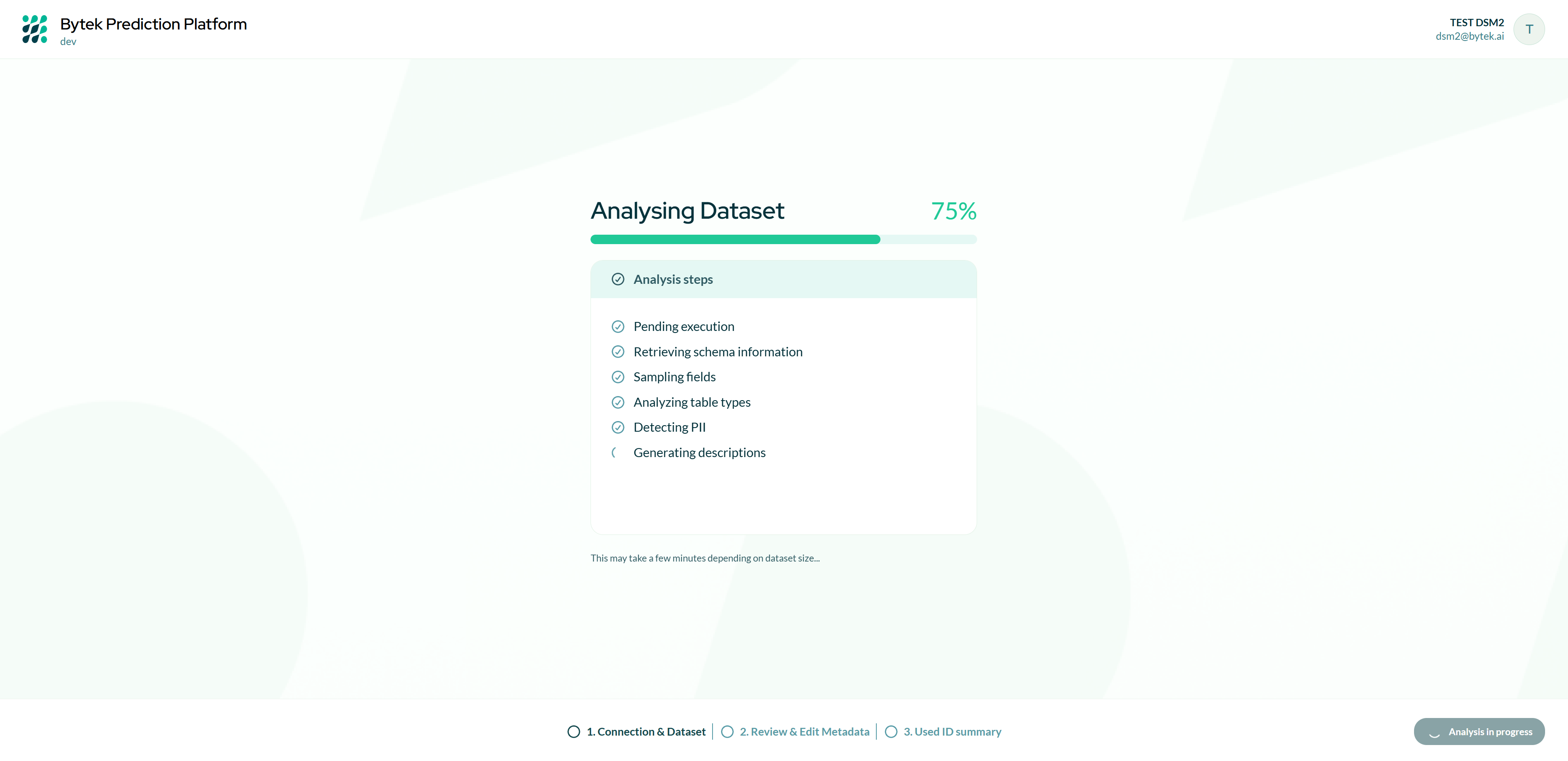
BPP automatically scans your dataset and detects all available tables and fields.
The analysis typically takes a few minutes depending on dataset size. The screen refreshes automatically when the analysis is complete.
Step 3 — Review & Edit Metadata
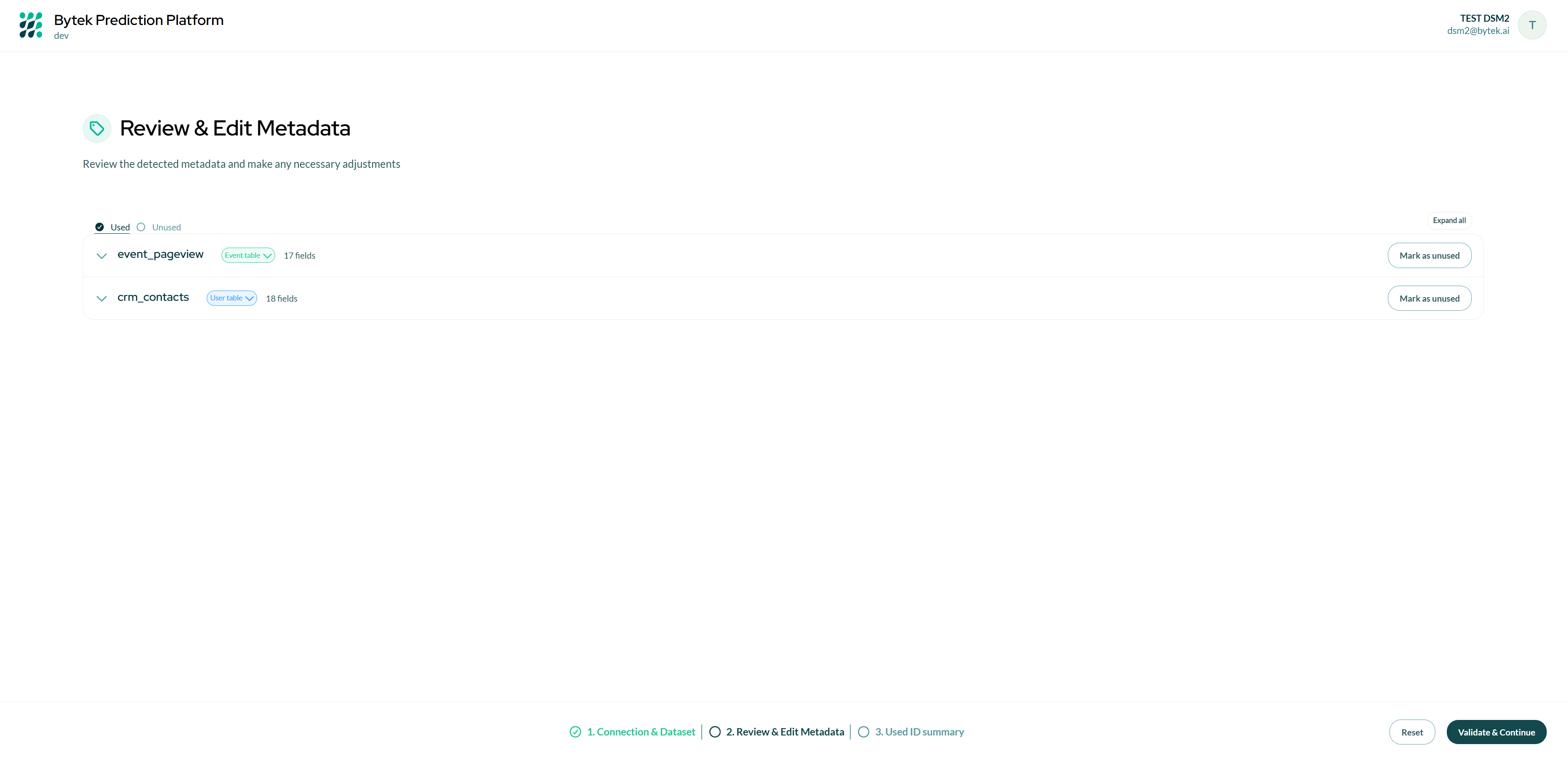
This step shows all tables detected in your dataset. For each table you can:
- Mark as Used or Unused — only tables marked as Used are included in the active schema.
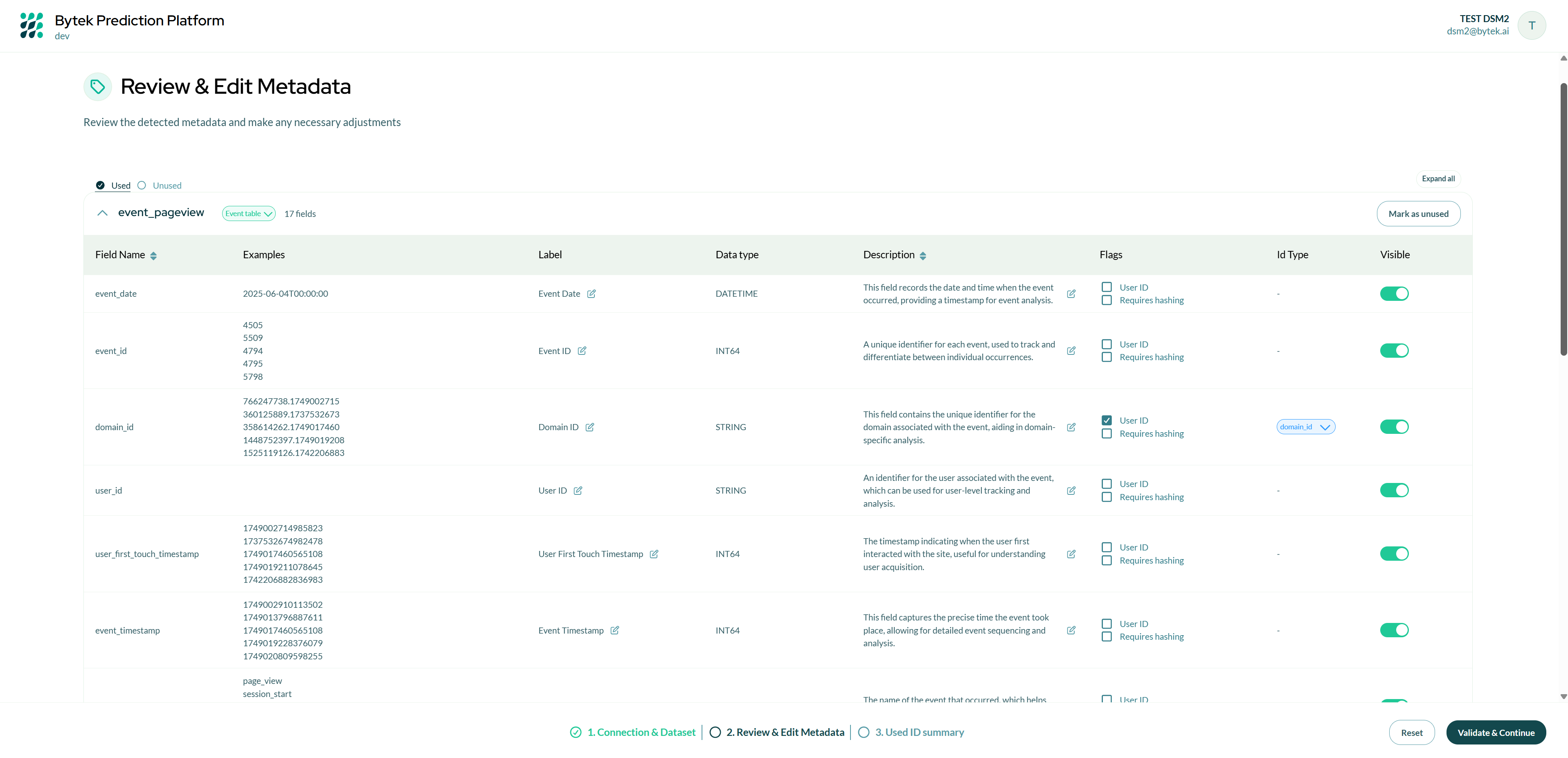
- Edit label and description — give each field a friendly name and description to make it easier to identify in audiences and signals.
- Set the identifier type — for key fields (e.g. email, id), specify the identifier type so BPP can match users across tables.
Once you have reviewed and configured all tables, click Validate & Continue.
- All tables marked as Used must have at least one identifier field configured before you can proceed.
- You can also specify if the field you selected as Identifier is a PII and requires hashing.
Step 4 — Used ID Summary
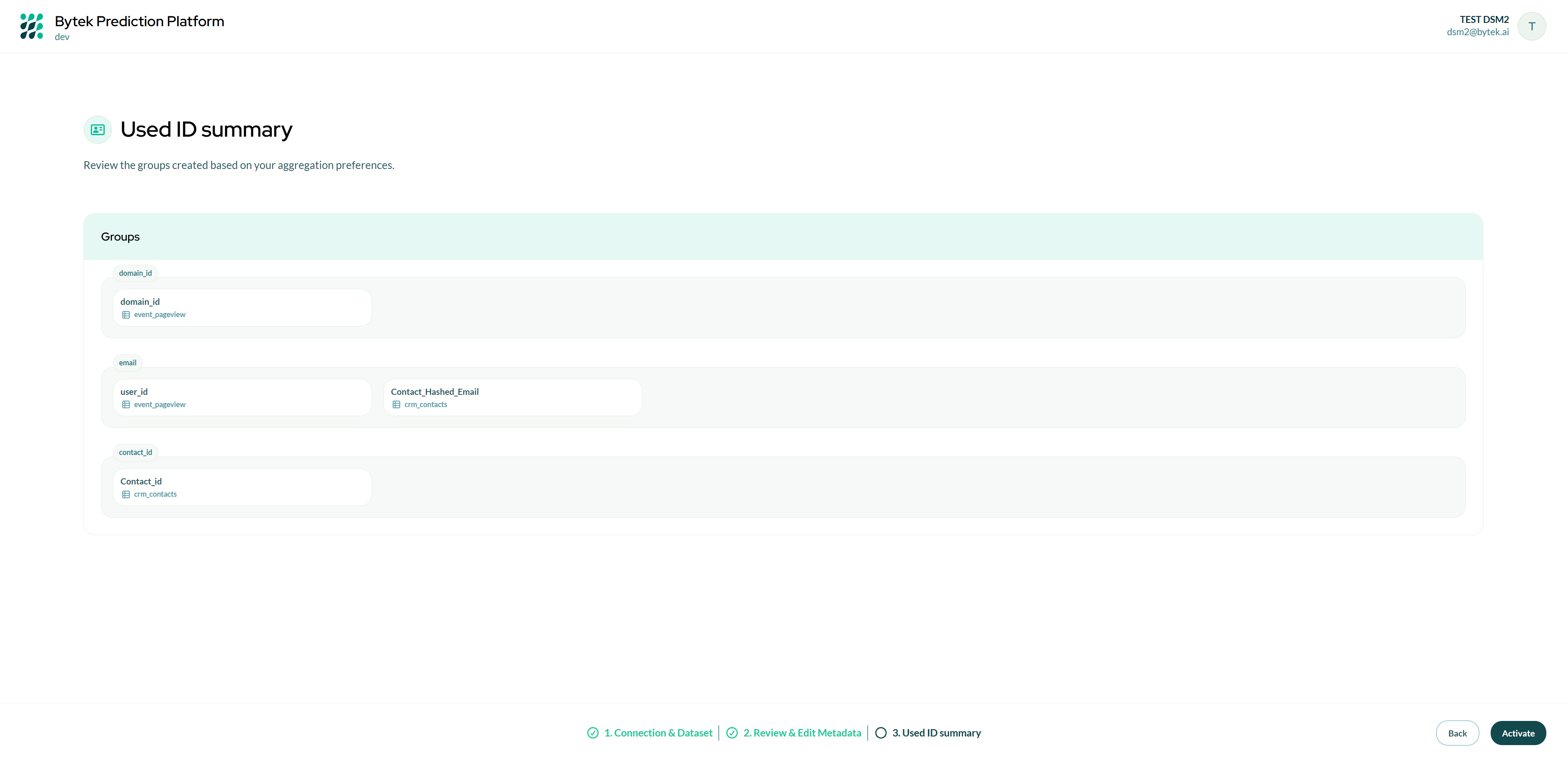
This screen shows a consolidated view of all identifier groups across your configured tables. Review the groups to verify that the identity configuration is correct.
Each card represents one identifier type (e.g. email, crm_id). The fields inside the card are the individual table columns mapped to that identifier.
Click Activate to proceed to activation.
Step 5 — Activation & Onboarding Completed
A confirmation modal explains that:
- The platform will be temporarily unavailable during the initial reconciliation.
- After activation, you will only be able to edit labels, descriptions, and visibility — not the schema structure.
Click Activate in the modal to confirm.
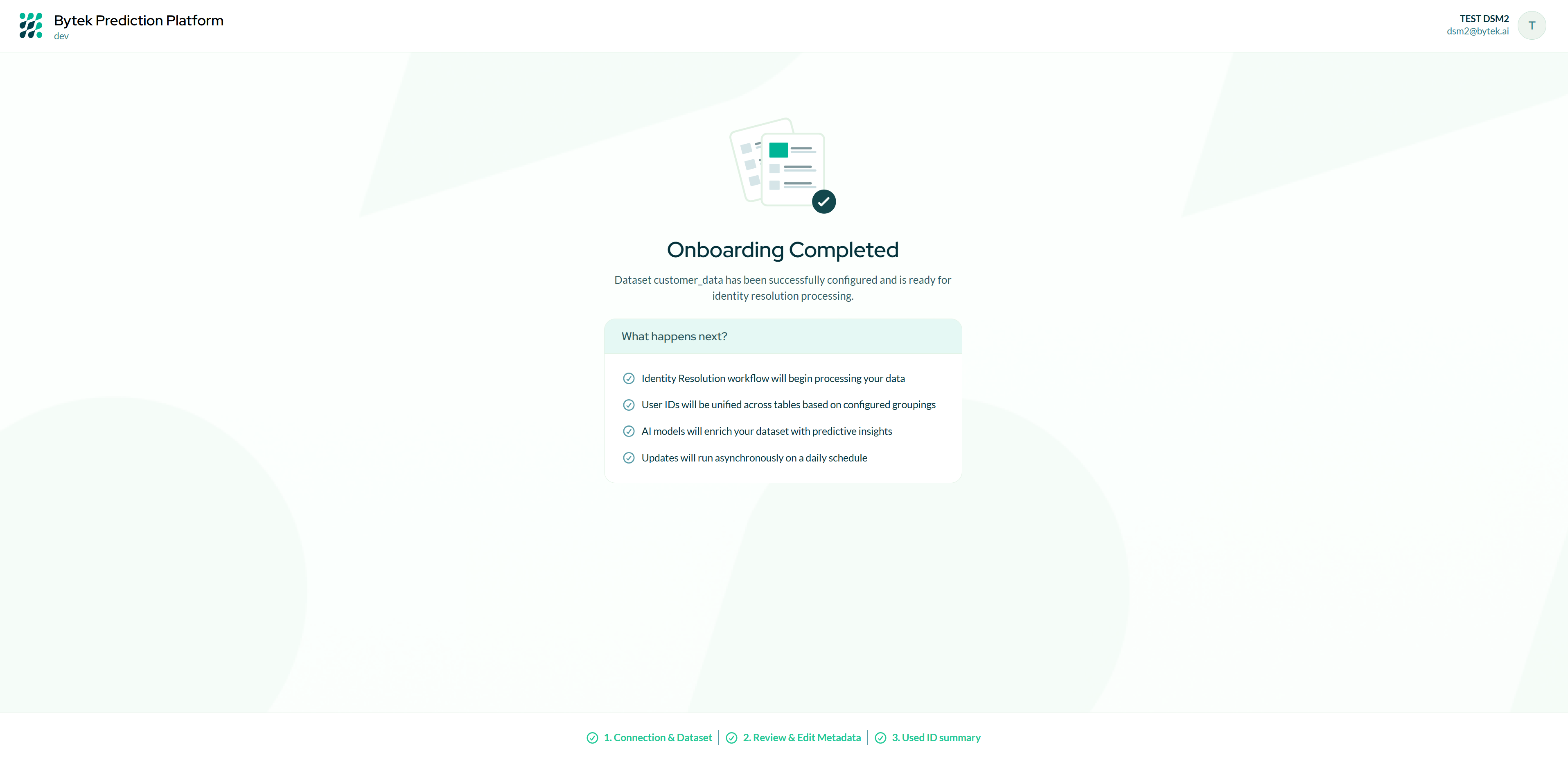
Once the reconciliation completes, the platform is live. You are automatically redirected to the BPP dashboard.
Tips
- You can return to previous steps during the review phase using the Back button.
- The initial reconciliation usually can take hours. The redirect to the dashboard happens automatically.
- After onboarding, use Tables Configuration to edit labels and descriptions without re-onboarding.
- To add new BigQuery tables to the platform, use the Add Tables flow.