Add Tables
The Add Tables flow lets you bring new BigQuery tables into the platform. Use it any time your dataset grows and you want the new tables available for AI models, audiences, and signals.
Video tutorial — A short walkthrough is available here: Watch on Loom (TODO!)
How to start
Navigate to Tables Configuration in the left sidebar and click Discover New Tables.
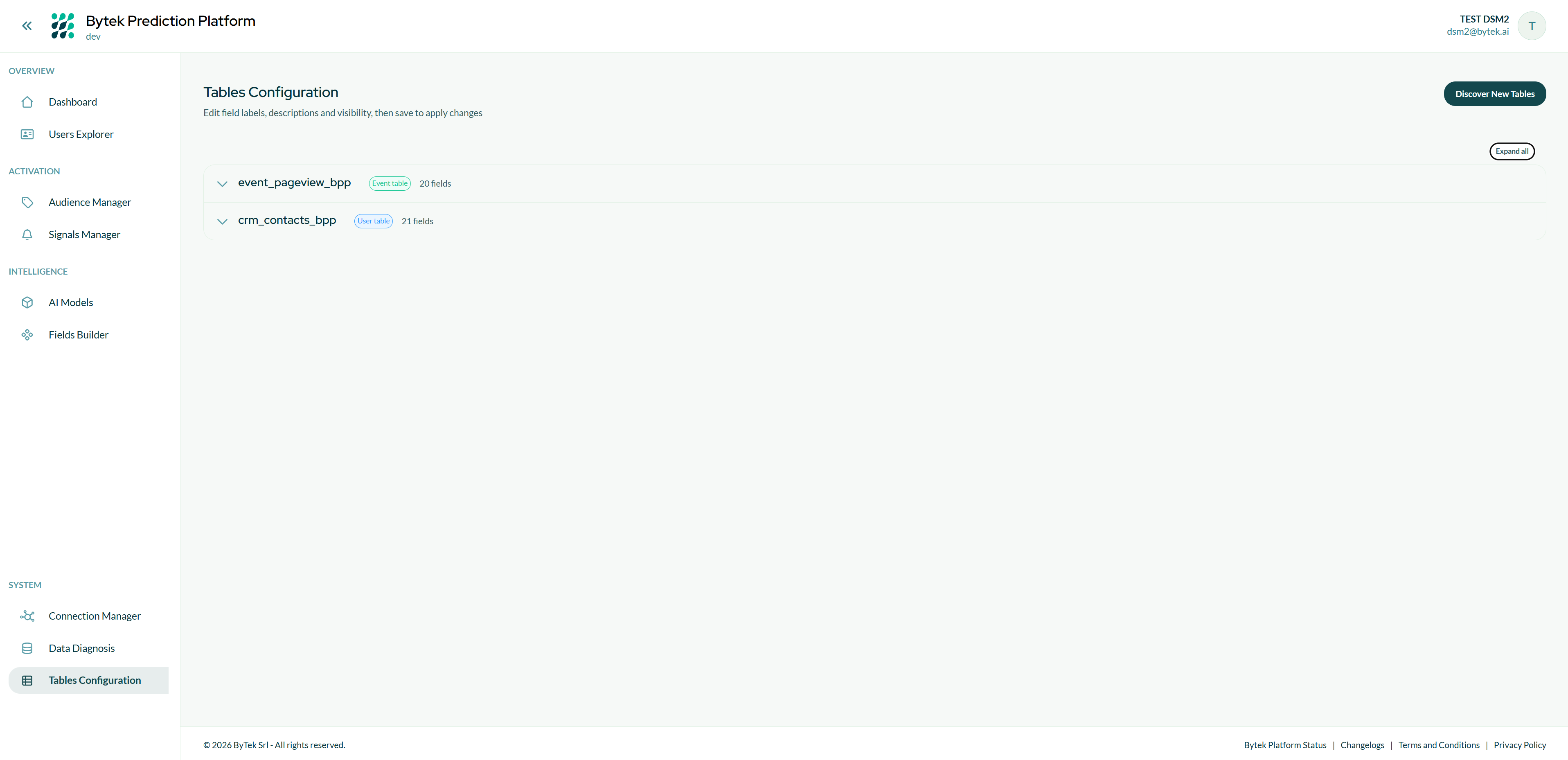
BPP will scan your BigQuery dataset for tables not yet part of the active schema.
The flow
The Add Tables flow follows the same steps as the DSM Onboarding — analysis, metadata review, ID summary, and activation — with one difference: the Used ID Summary screen shows all identifier groups together (new and already active), and fields belonging to the new tables are marked with a New! badge so you can quickly verify compatibility.
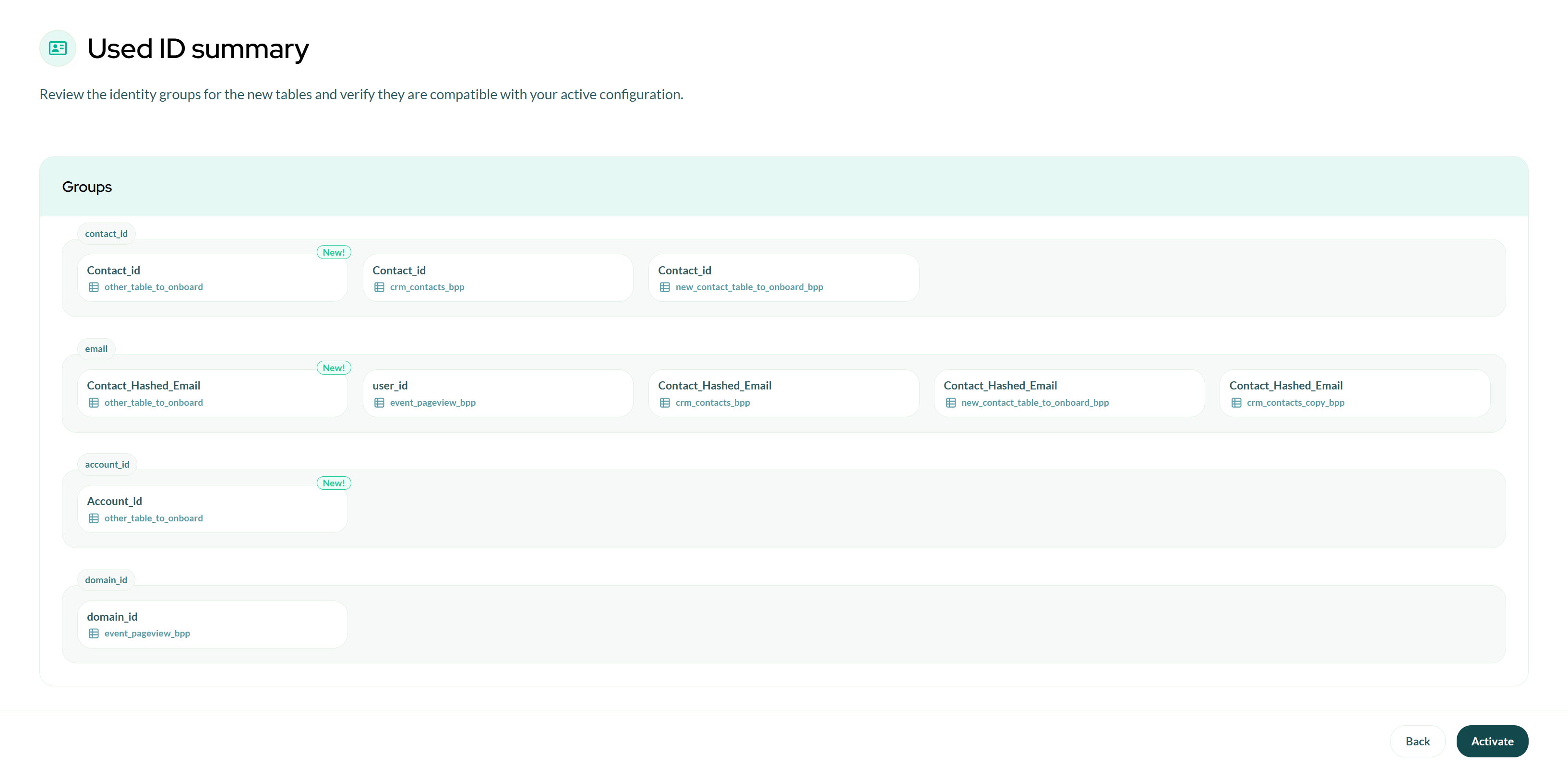
Important: After clicking Activate and confirming, the platform will be temporarily unavailable until the reconciliation of the new tables is complete. The process usually takes a few minutes and the redirect to the dashboard happens automatically.
Edge cases
No new tables found: If BPP does not detect any new tables, a "No New Tables Found" message is shown. Click Back to Tables Configuration to return.
Analysis error: If the analysis fails, an error screen is shown. Contact support and share the error details.
Reset: At any point during the review phase, click Reset to cancel the flow and return to the operational state without making any changes.
Tips
- You can run the Add Tables flow as many times as needed — repeat it whenever new tables are added to your BigQuery dataset.
- The platform is temporarily unavailable during reconciliation. Plan activations for low-traffic periods if possible.
- Tables added via this flow behave exactly like tables configured during the initial onboarding.